Map Maxi block
Map Maxi (beta) block documentation
1. Overview
The Map Maxi block empowers you to embed interactive maps into your content, offering a wide range of customization options for map display, markers, and user interactions.
📌 Note: This block is in beta. Features may change or be updated in future versions.
Usage tips
-
Start by selecting your preferred map provider (OpenStreetMap or Google Maps)
-
Use the search bar to quickly find and mark locations
-
After placing a marker, use the marker customization options to adjust its appearance
-
Customize marker pop-ups to provide relevant information about each location
-
Adjust the map interaction settings based on your users' needs and devices
-
Experiment with different marker styles and colours to best represent your data
🔄 Remember: Map data may not always be up-to-date. Consider adding a last-updated date if accuracy is crucial for your use case.
2. Basic settings
-
Block name: Customize the name of your map block (e.g., "Map_1")
-
Block tone: Choose between Light and Dark themes
3. Map configuration
Map Provider Options:
- OpenStreetMap
-
Free, open-source map data
-
No API key required
- Google Maps
- Requires an API key
⚠️ Important: To use Google Maps, you must obtain and enter a valid API key.
Setting up Google Maps:
-
Obtain a Google Maps API key from the Google Cloud Console
-
Enter the API key in the designated field within the Map Maxi block settings
4. Adding a marker
🎯 Pro Tip: Adding a marker is simple and doesn't require coordinates.
-
Use the search bar at the top of the map to find a location
-
Select the desired location from the search results
-
A marker will be automatically placed on the map
-
Customize the marker using the settings described below
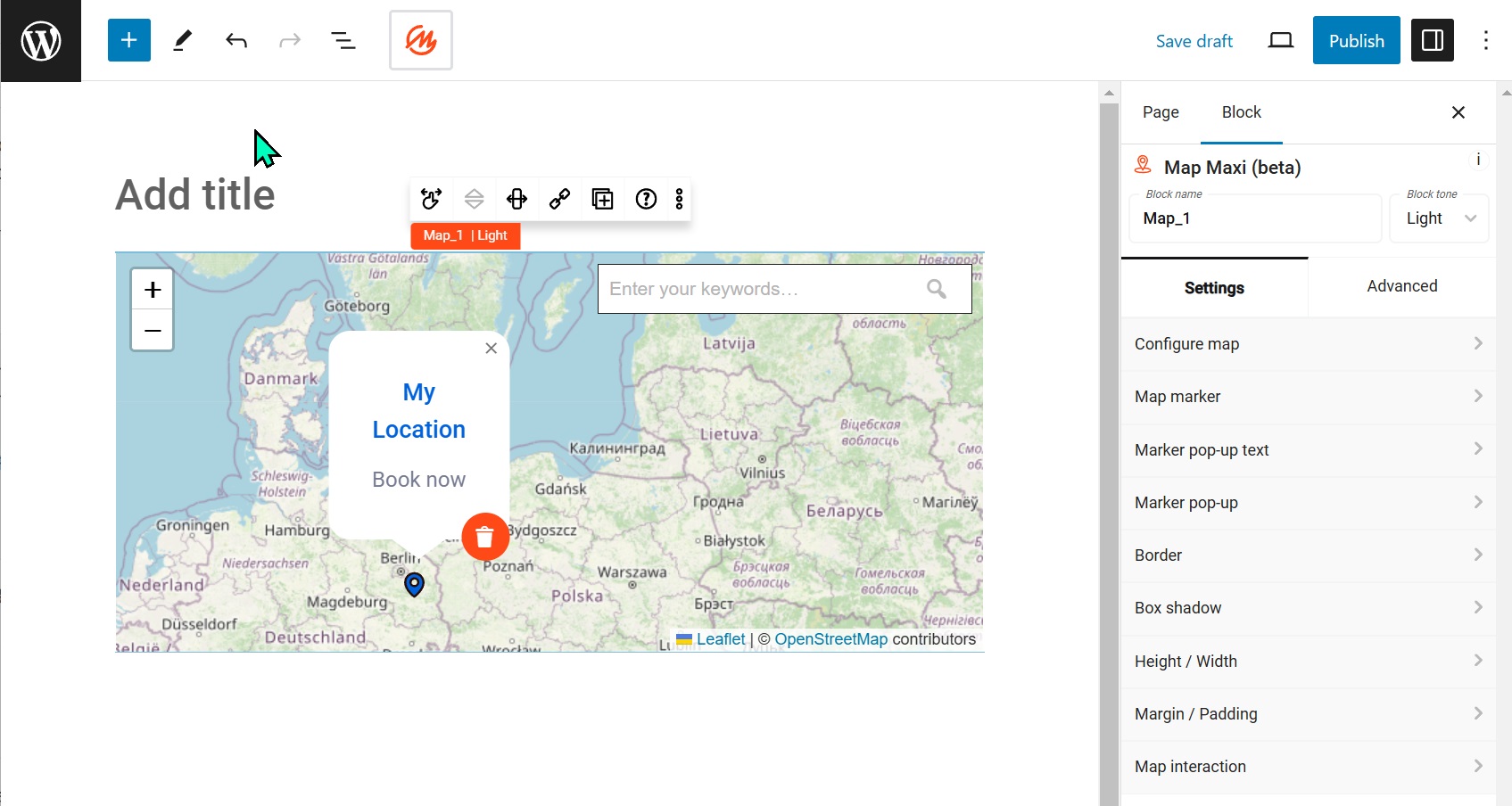 Figure 1: Map Maxi marker options.
5. Map marker customization
-
Marker style: Choose from various marker icons (pin, flag, etc.)
-
Marker fill colour: Select from preset colours or set a custom colour
-
Marker stroke colour: Choose the outline colour for markers
-
Marker size: Adjust the size of map markers (XXL to XS, or custom size)
6. Marker pop-up
Enhance your markers with informative pop-ups:
-
Title: Customize the title text
-
Description: Add descriptive text
-
Text formatting: Adjust font, colour, size, weight, and other text properties for both title and description
7. Map interaction
Tailor the user experience with these interaction settings:
-
Map dragging: Enable/disable map panning
-
Touch zoom: Allow zooming on touch devices
-
Double click zoom: Enable zooming with double-click
-
Scroll wheel zoom: Allow zooming using the mouse scroll wheel
🖥️ Accessibility Tip: Consider keeping all zoom options enabled for better accessibility across devices.
8. Additional settings
Fine-tune your map's appearance:
-
Border: Customize the map border
-
Box shadow: Add shadow effects to the map container
-
Height / Width: Adjust the dimensions of the map
-
Margin / Padding: Fine-tune the spacing around the map