Customising navigation menus
Inserting a menu pattern
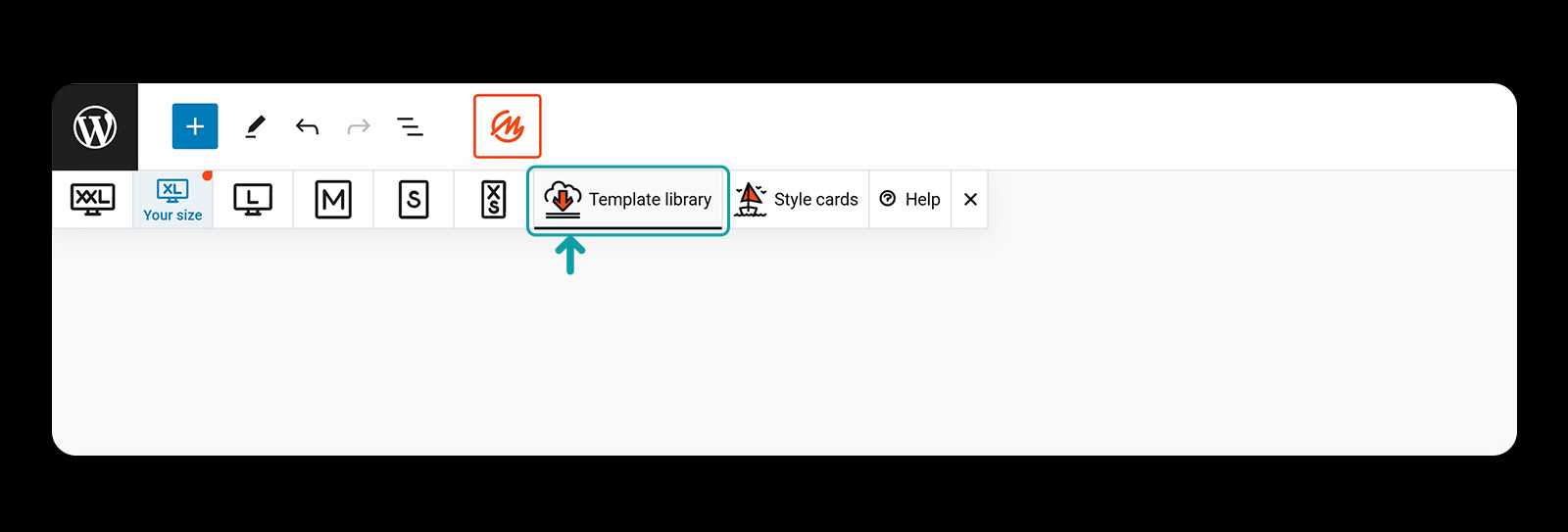
Menus are added from the MaxiBlocks library. Click the MaxiBlocks icon in the main toolbar and then click the Template library button.
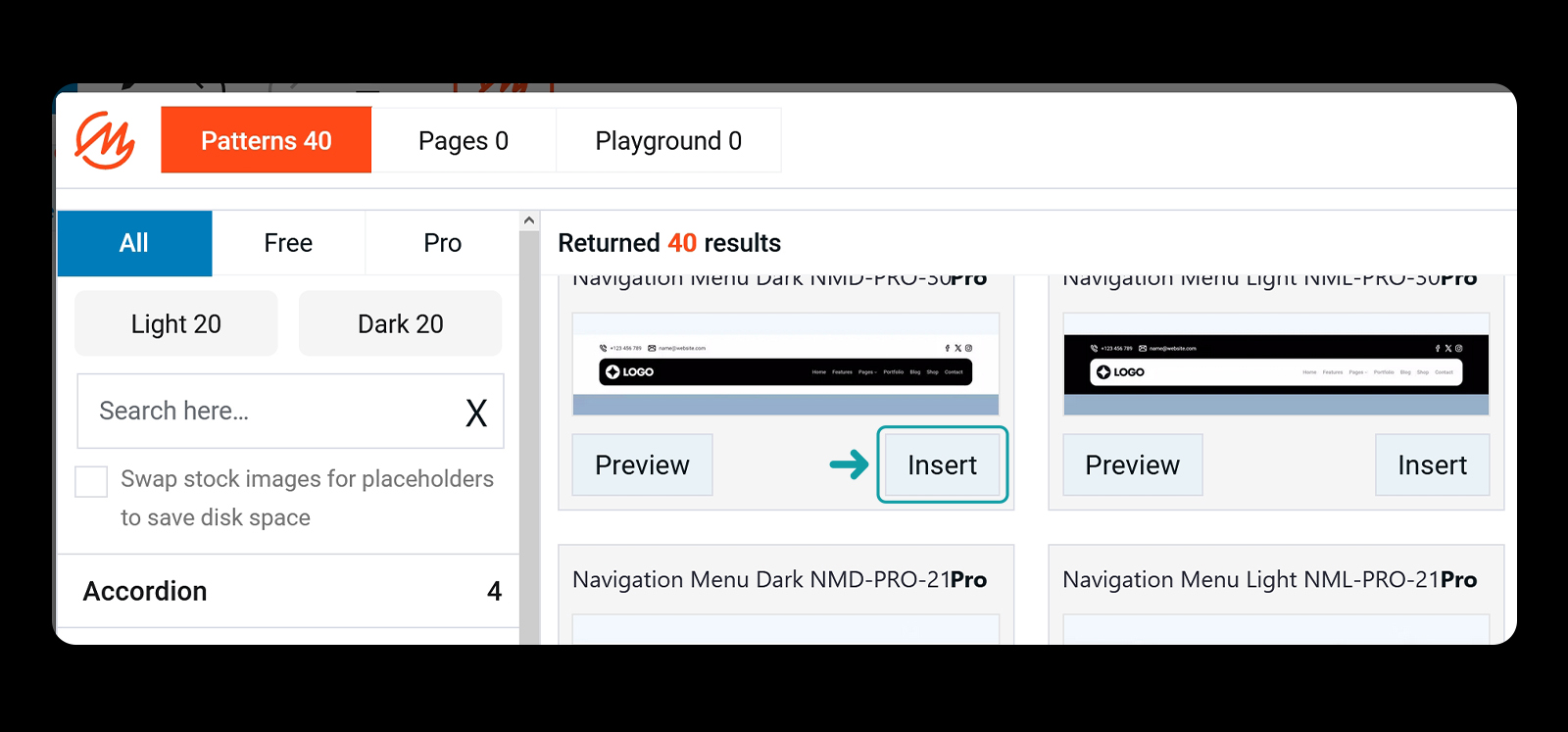
Filter navigation menus and insert the one you like by clicking the insert button.
Creating a new menu
If you don't have a menu created yet, you will see a message like this:
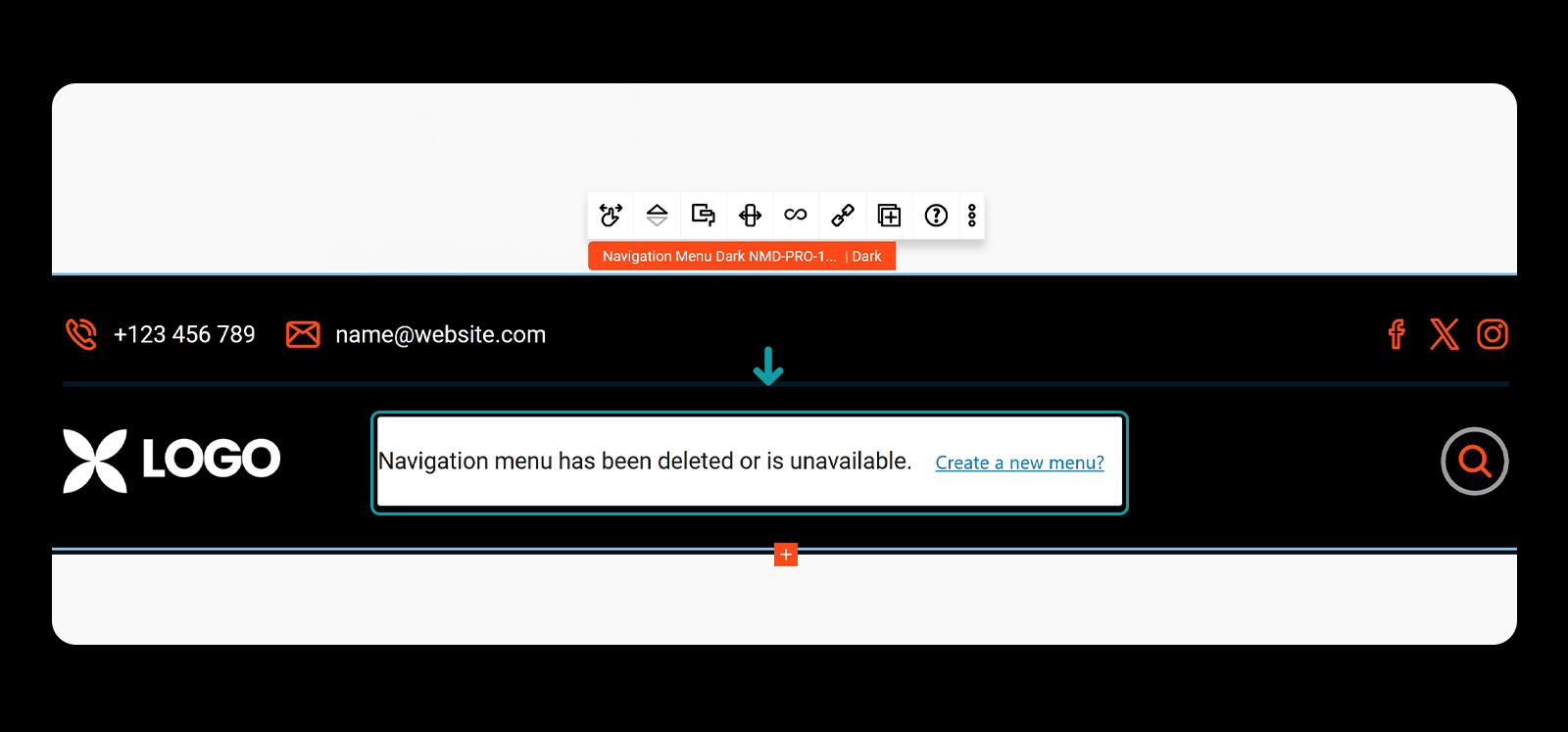
Click the link and create a menu.
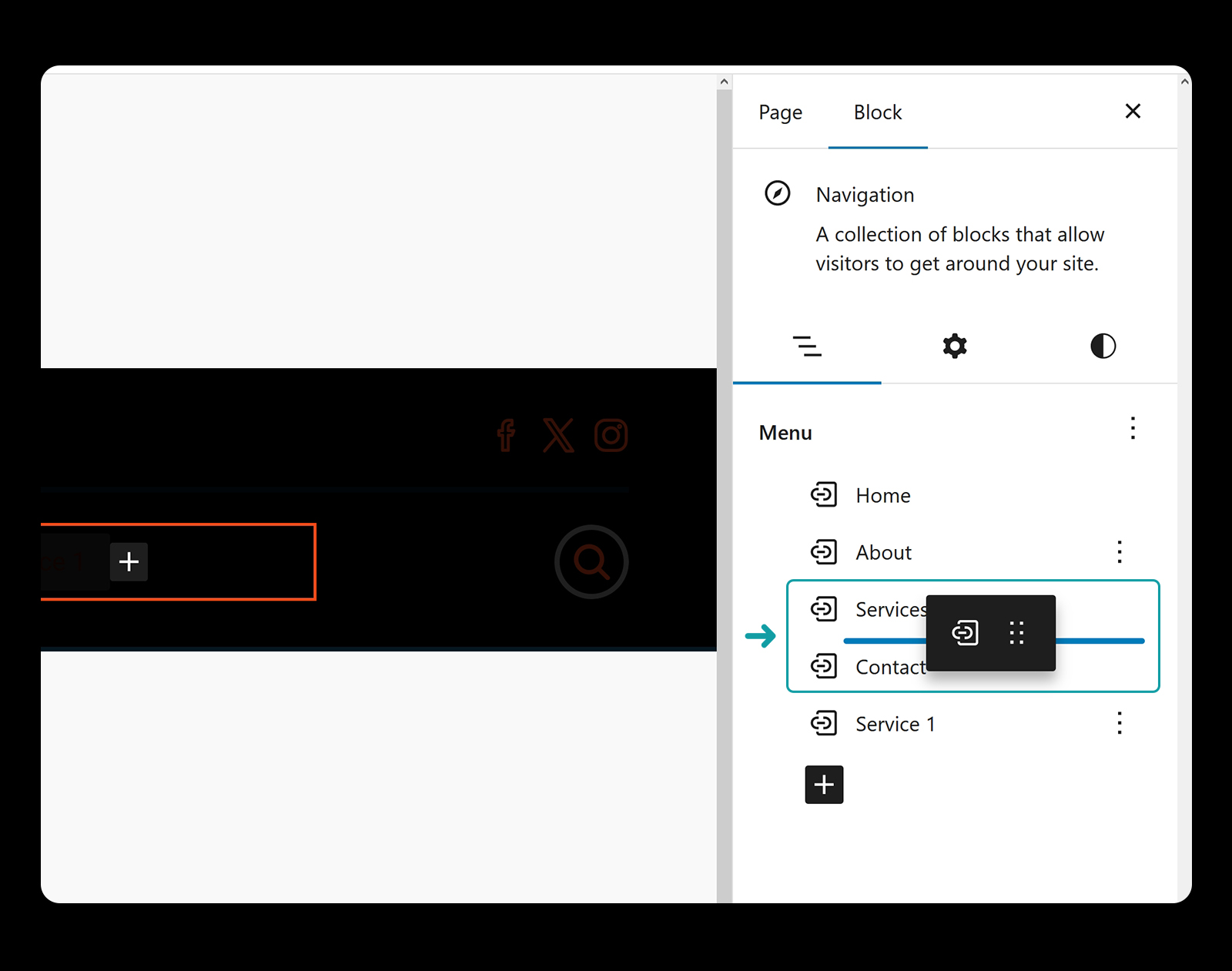
Next, click the **plus icon **to start adding the menu items. Choose the page link block to insert a link to a page, or use the custom link block to add a custom link.
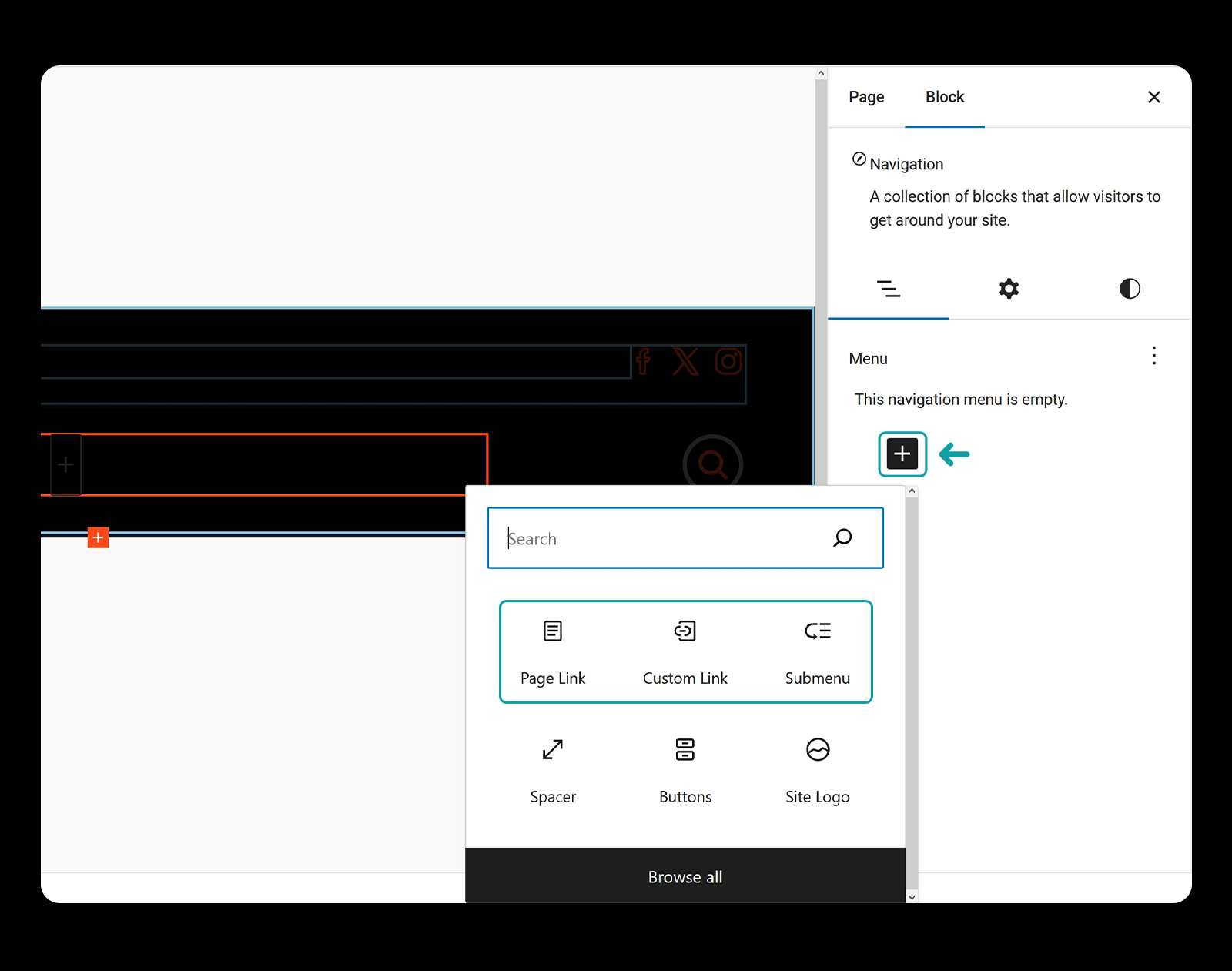
You can insert **submenu **items too by choosing the submenu block, or drag and drop menu items below the parent one, as shown on the image:
Customising
Menu customisation is possible using the Style card manager.
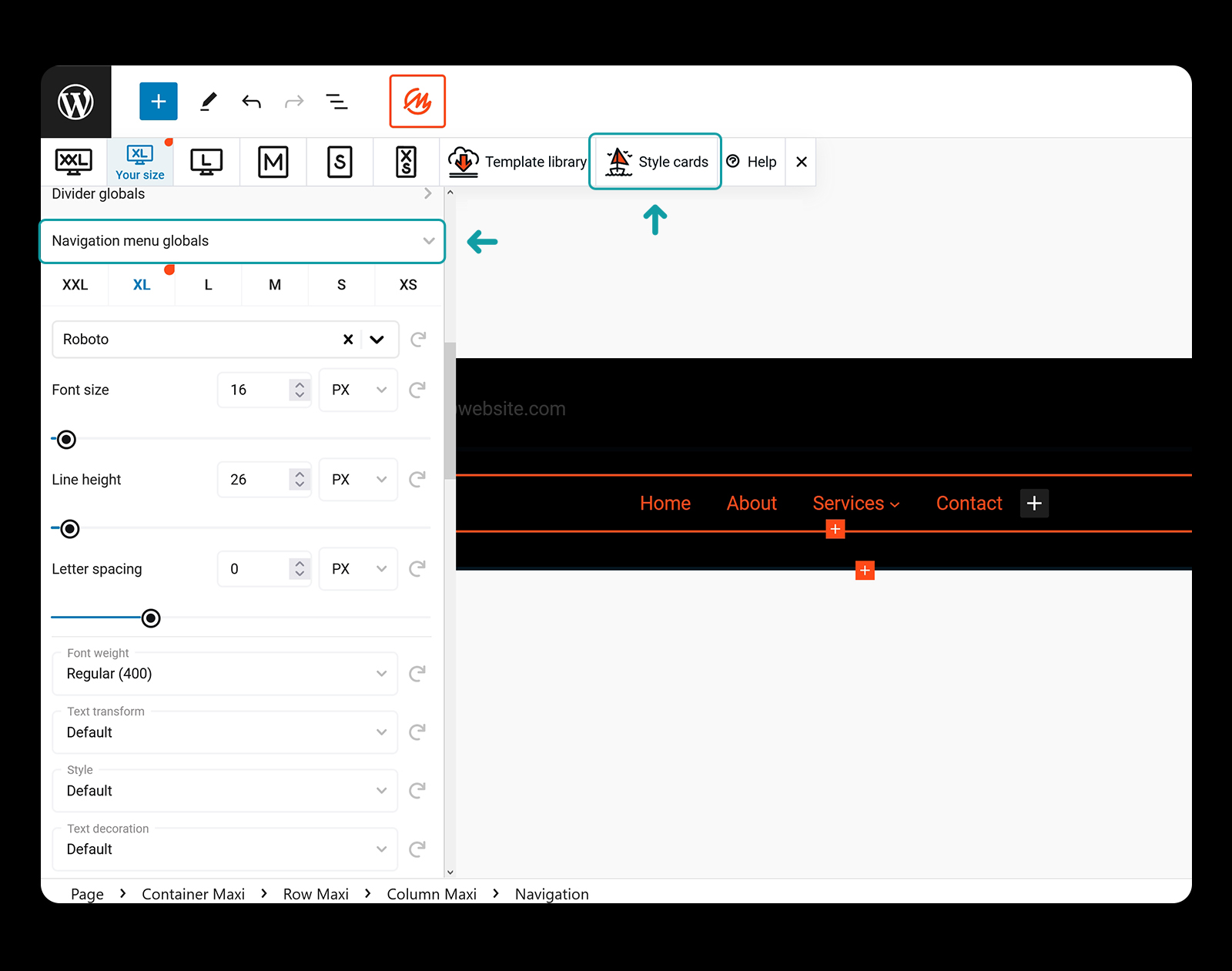
Click the MaxiBlocks icon from the toolbar and choose Style cards. Scroll all the way down and toggle Navigation menu globals.
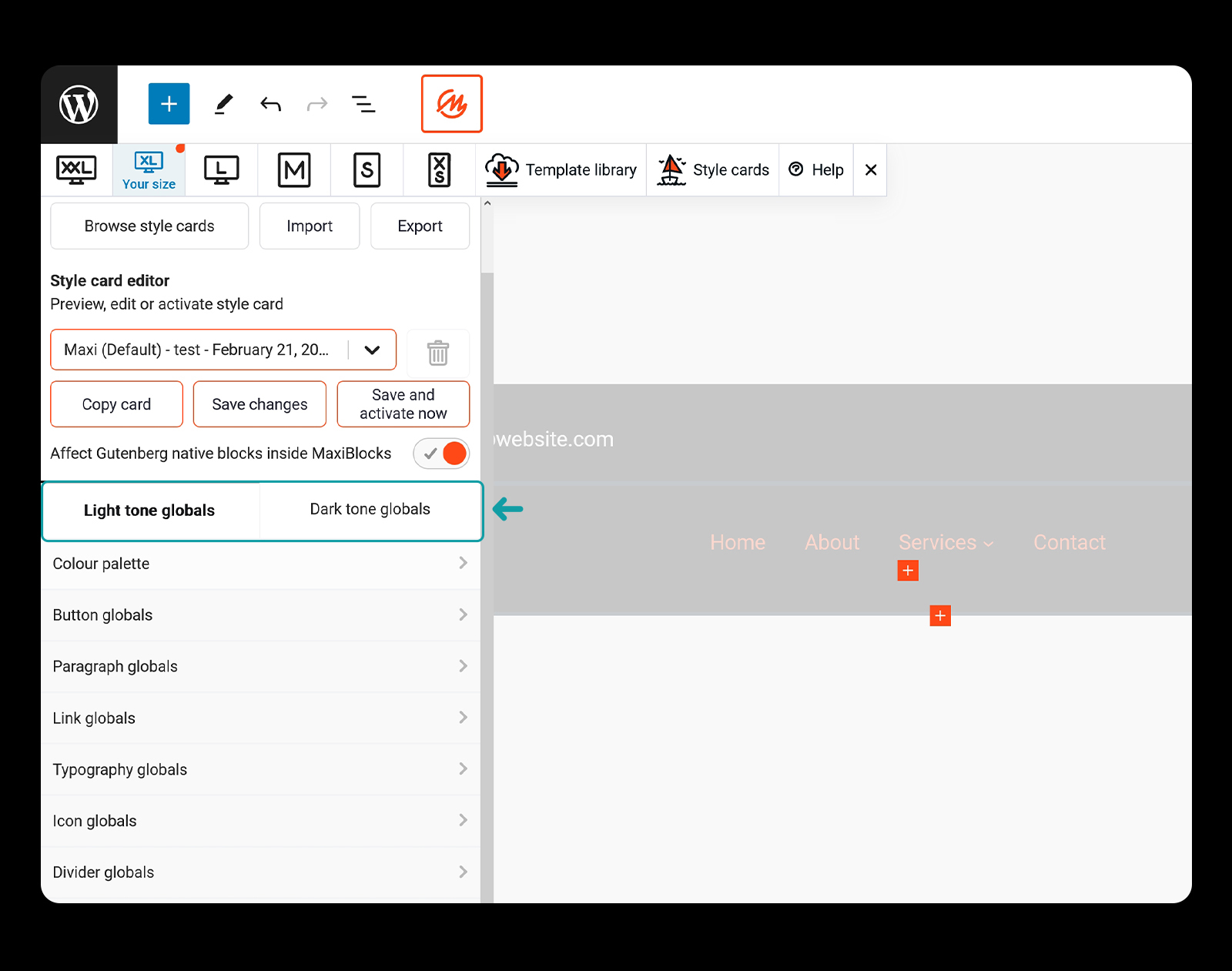
Note that we have light and dark pattern tones. Depending which tone navigation you selected is, you need to make sure you're editing the correct tone settings.
Typography
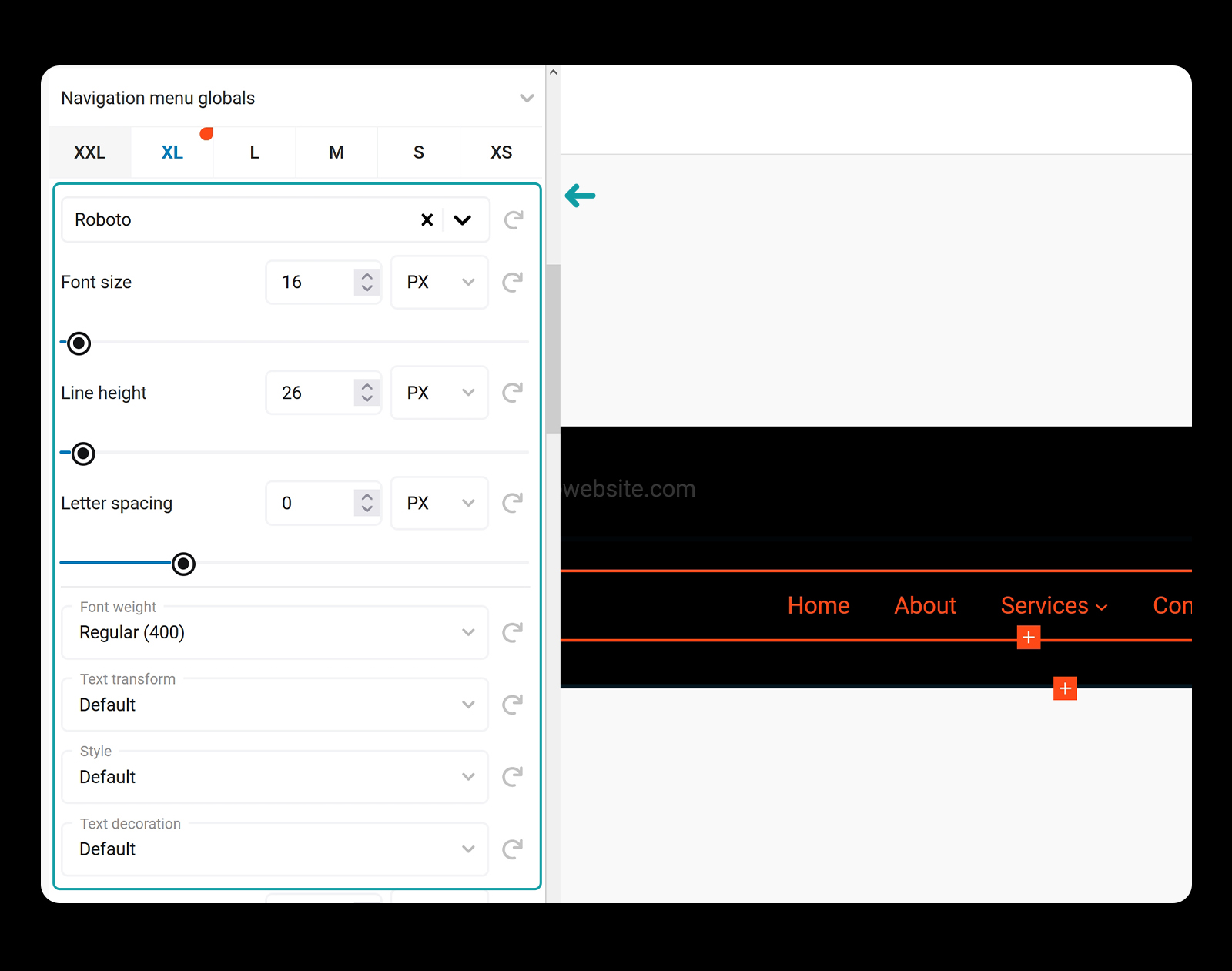
First section in the navigation menu settings is for typography. Set your font family, font size and other settings.
Colours
Next we can set custom colours.
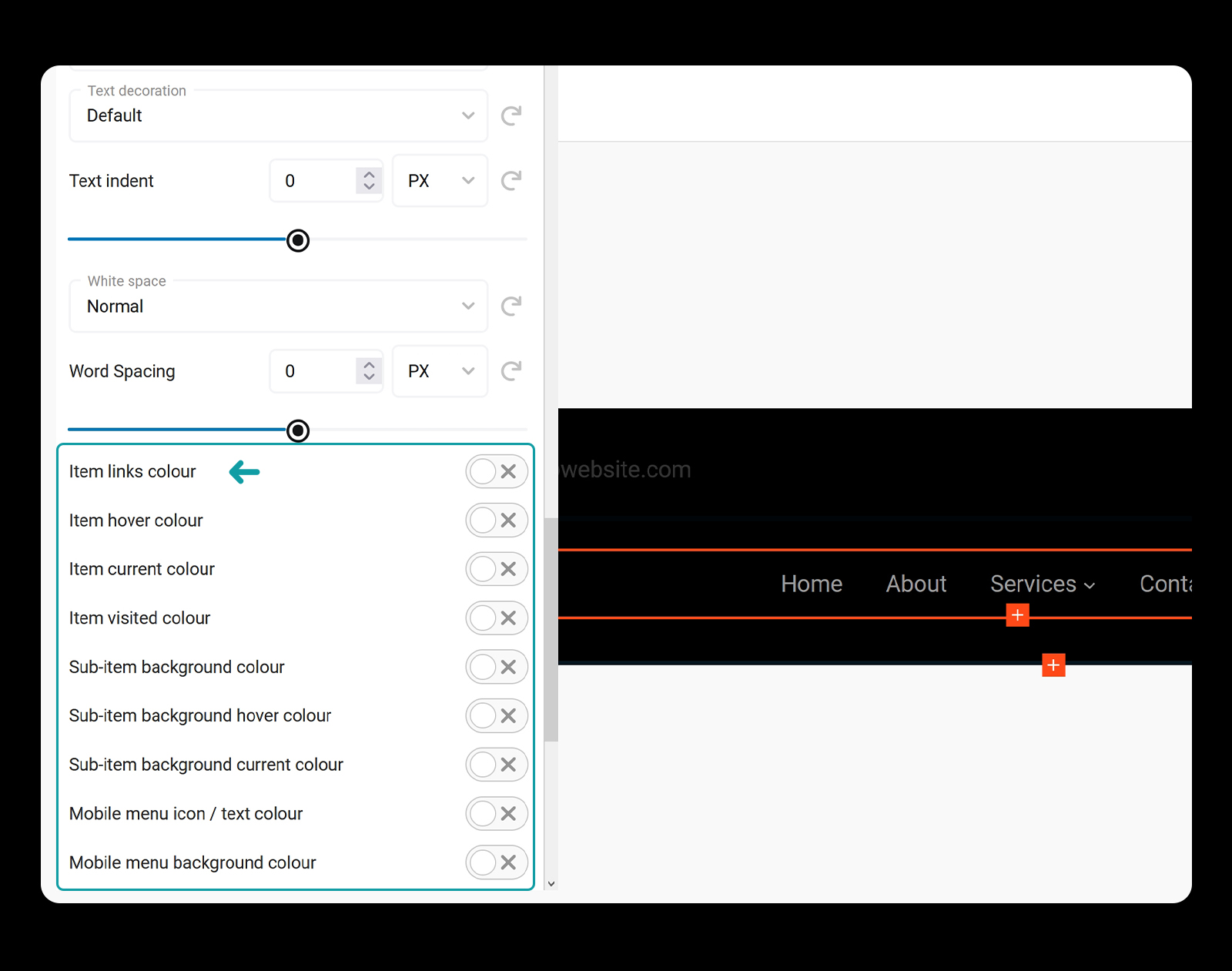
- Item links colour: sets the default colour for the menu items.
- Item hover colour: sets the hover colour for the menu items.
- **Item current colour: **sets the colour for the menu item's page user is currently on.
- **Item visited colour: ** sets the colour for visited pages menu items.
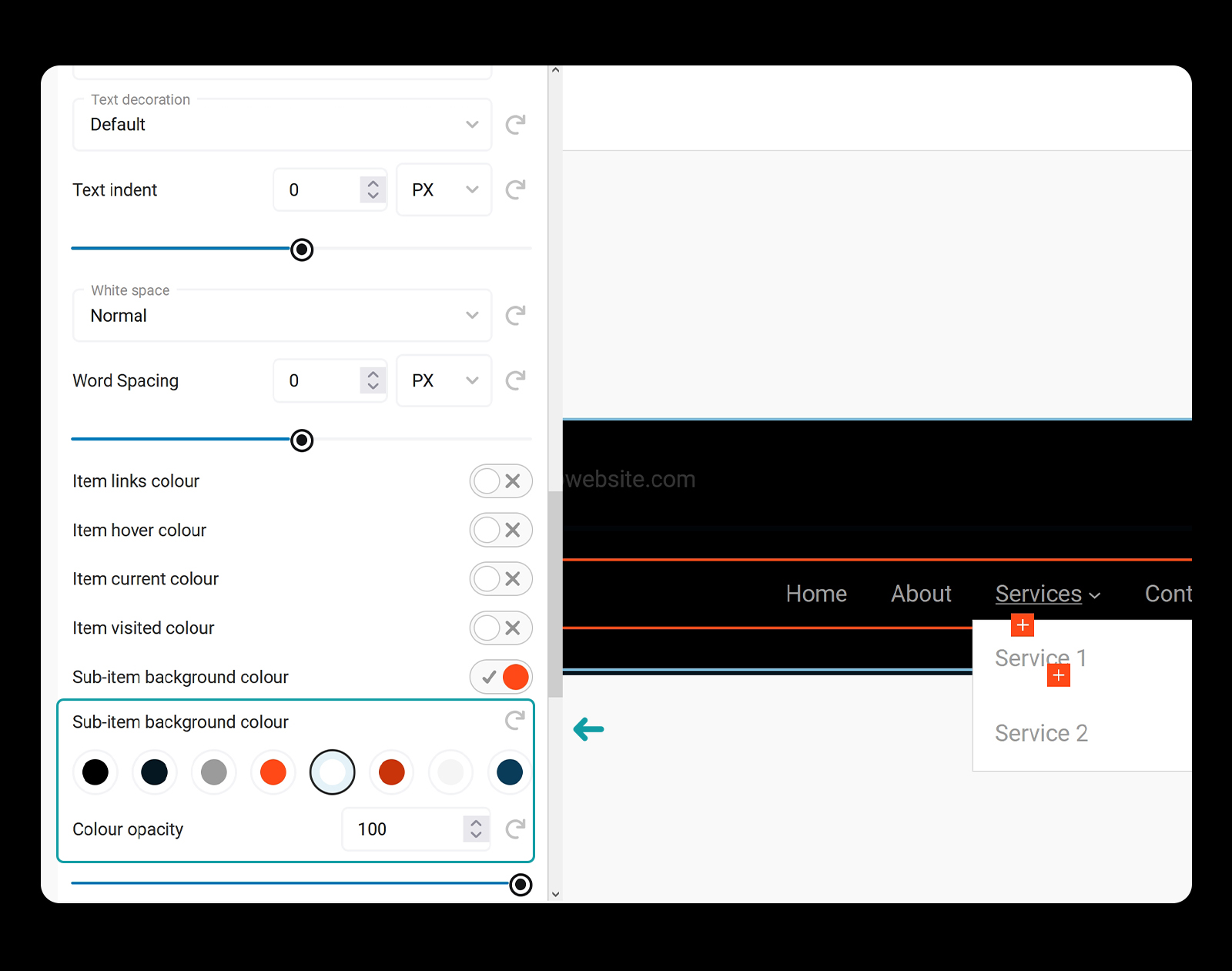
Sub-menu background colours
You can also set sub-menu background colours:
Mobile menu colours
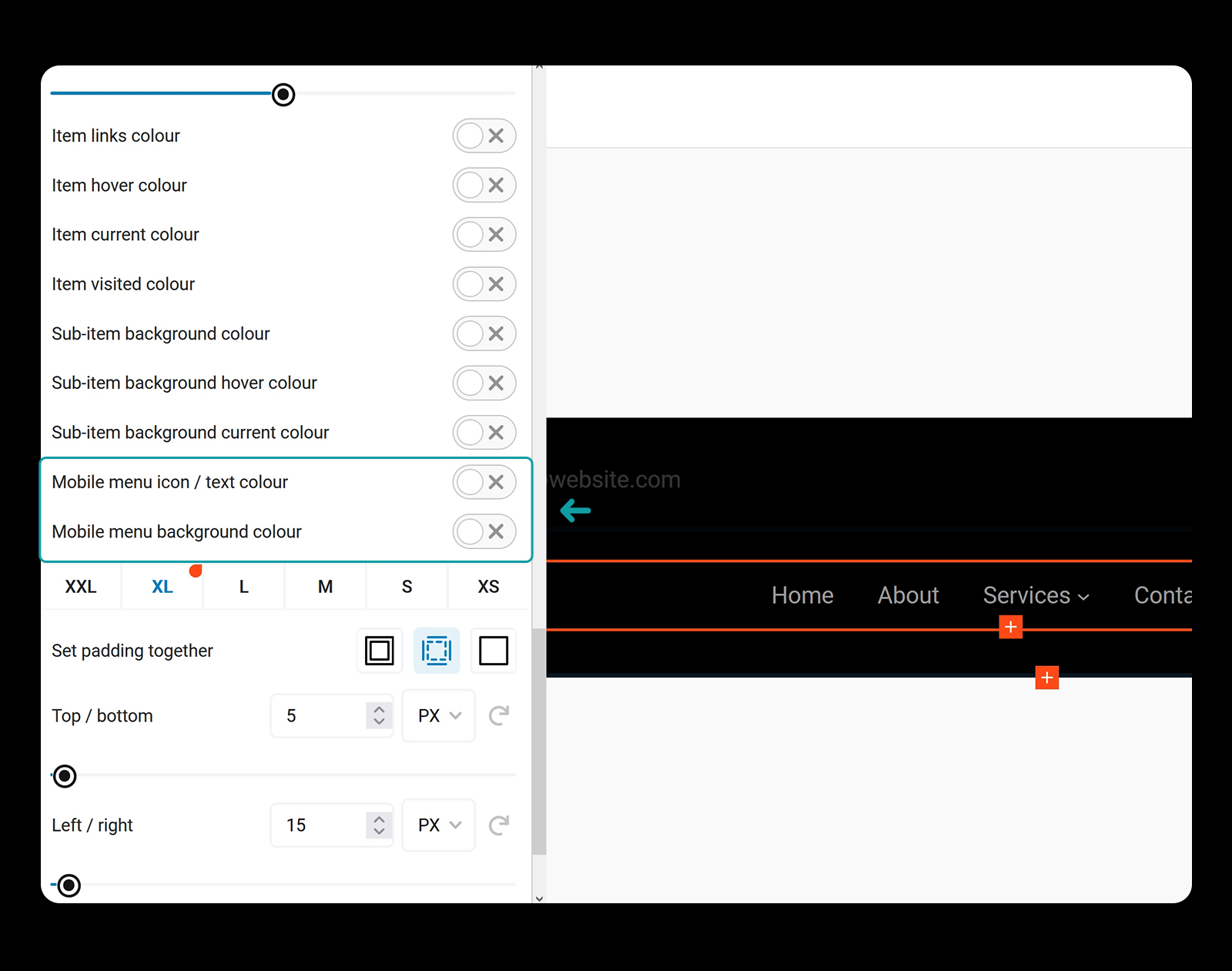
Change the icon colour and the background colour for mobiles as well as the mobile menu text colours.
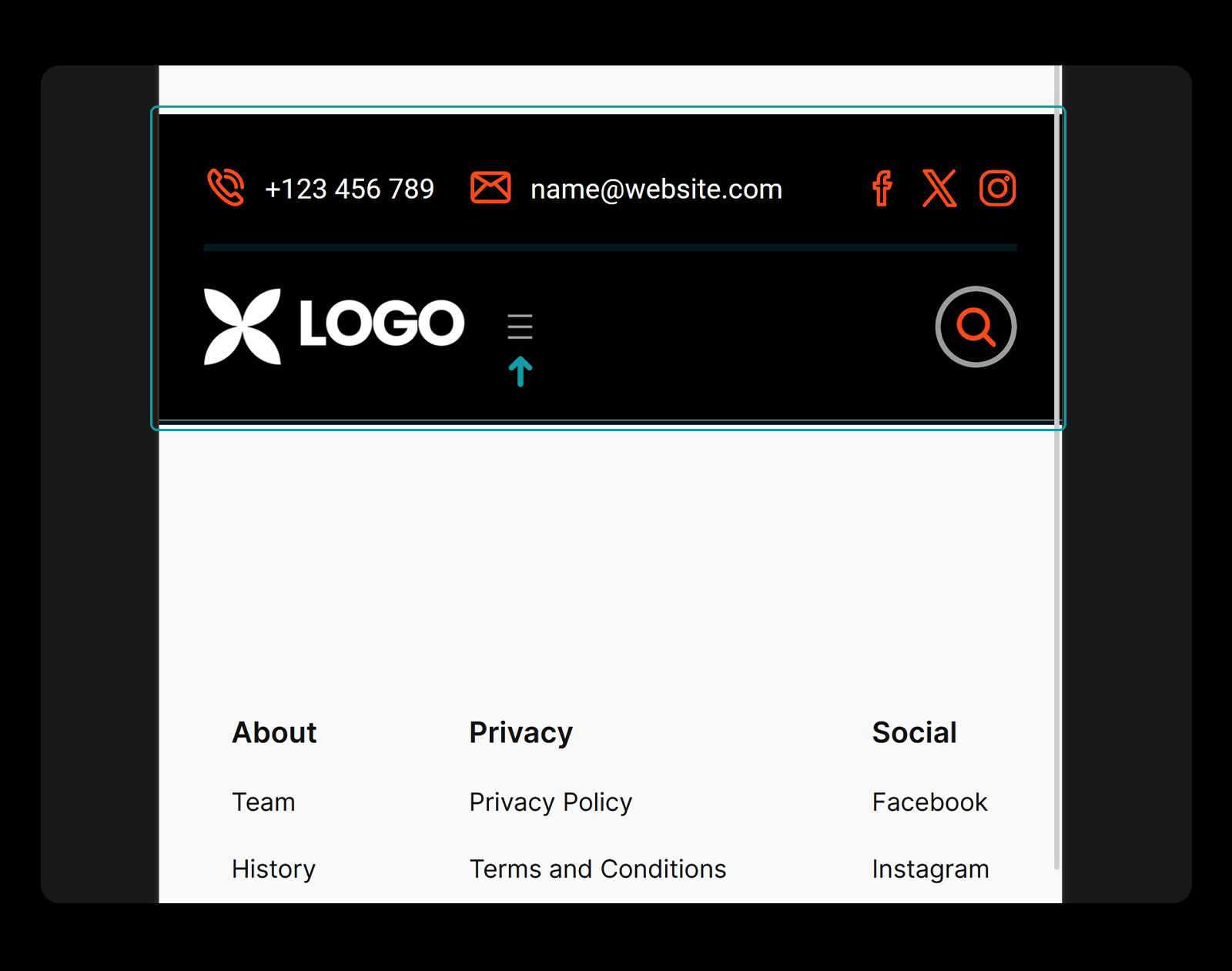
To do so, toggle mobile menu icon/text colour and background colour options.
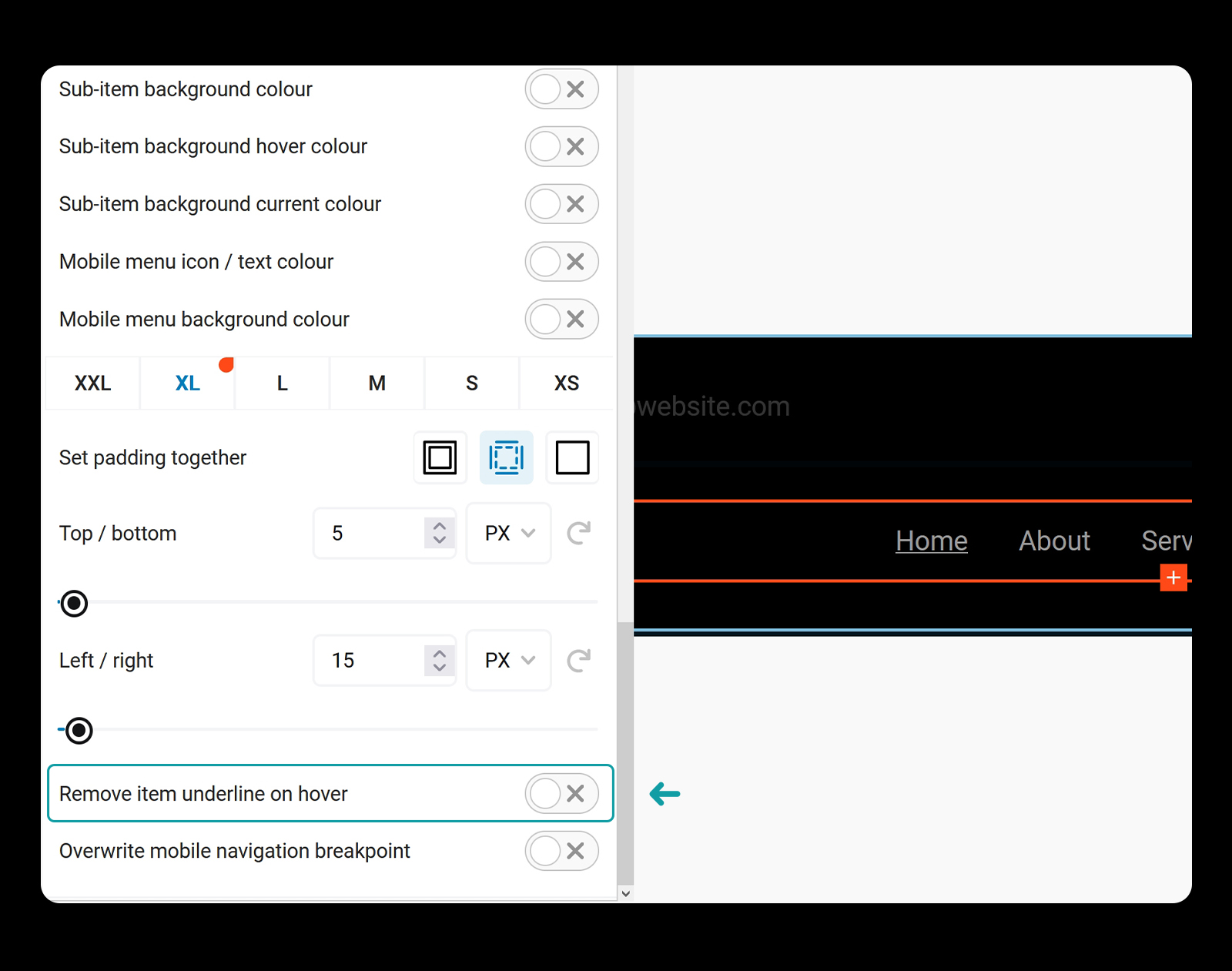
Underline
You can also choose to remove the hover underline.
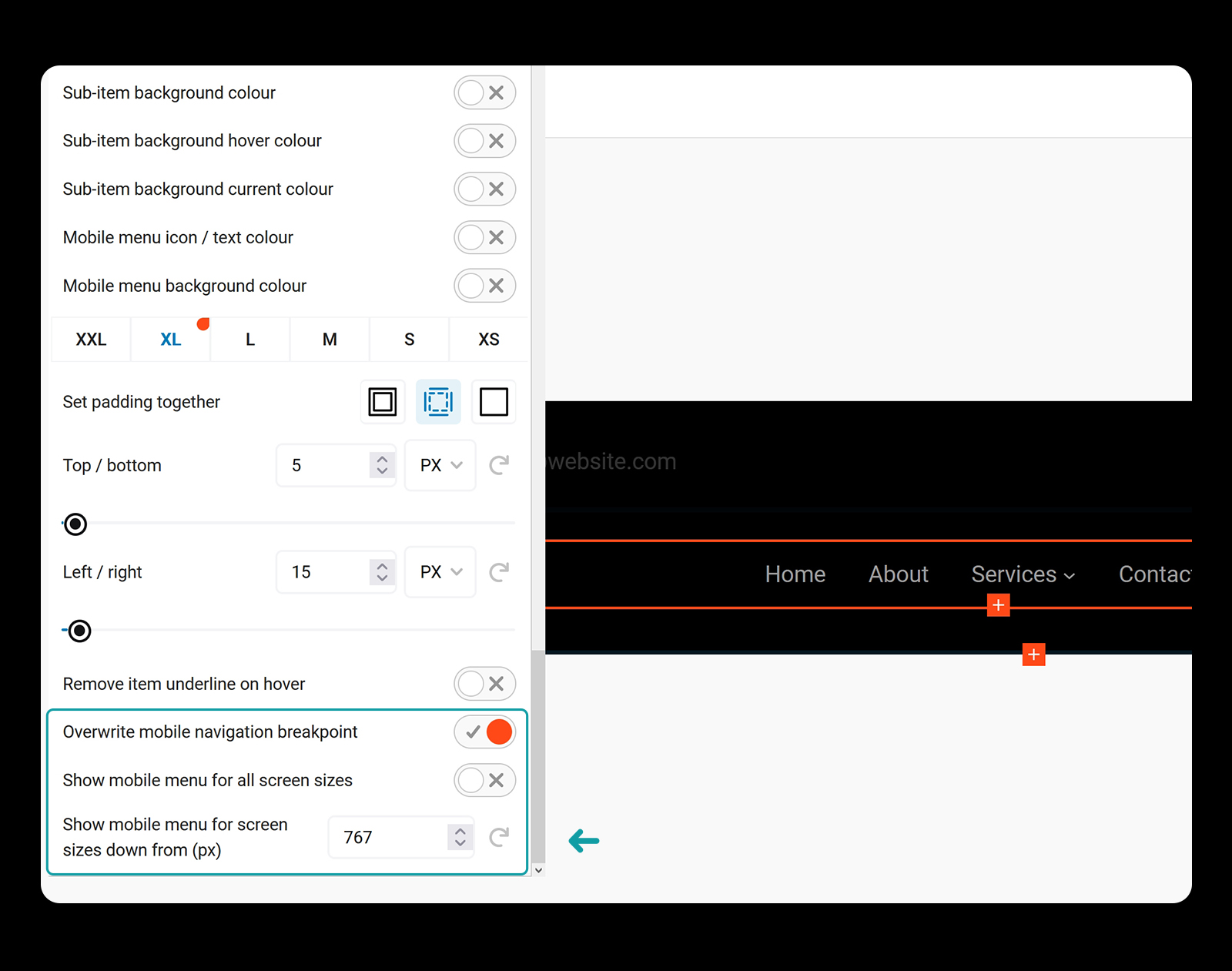
Breakpoint
Choose the breakpoint at which the mobile menu starts showing.
More useful links
-
Add and Manage Submenus in Your WordPress Navigation with Gutenberg
-
10 Crucial Elements of an Effective WordPress Navigation Menu
-
The Evolution of Website Navigation from Text Links to Dynamic Menus
-
How to Design Responsive Navigation Menus for Mobile Devices
-
Maximizing User Experience with Intuitive Navigation Structures